Managing Your Agents
Once you've created an agent, the pages below are where you watch it work, read its results, and step in when you want to. This section walks through the Agents dashboard, the per-agent analytics page, your open Positions, an individual Position, and your closed-trade History.
Throughout Bilo a bot is called an Agent, and a single trade an Agent opens on a pair — from the first buy through to the closing sell — is a Position (or deal).
The Agents Dashboard
The Agents page lists every agent on your account. Each agent is a card showing, at a glance, what it trades and how it's doing.
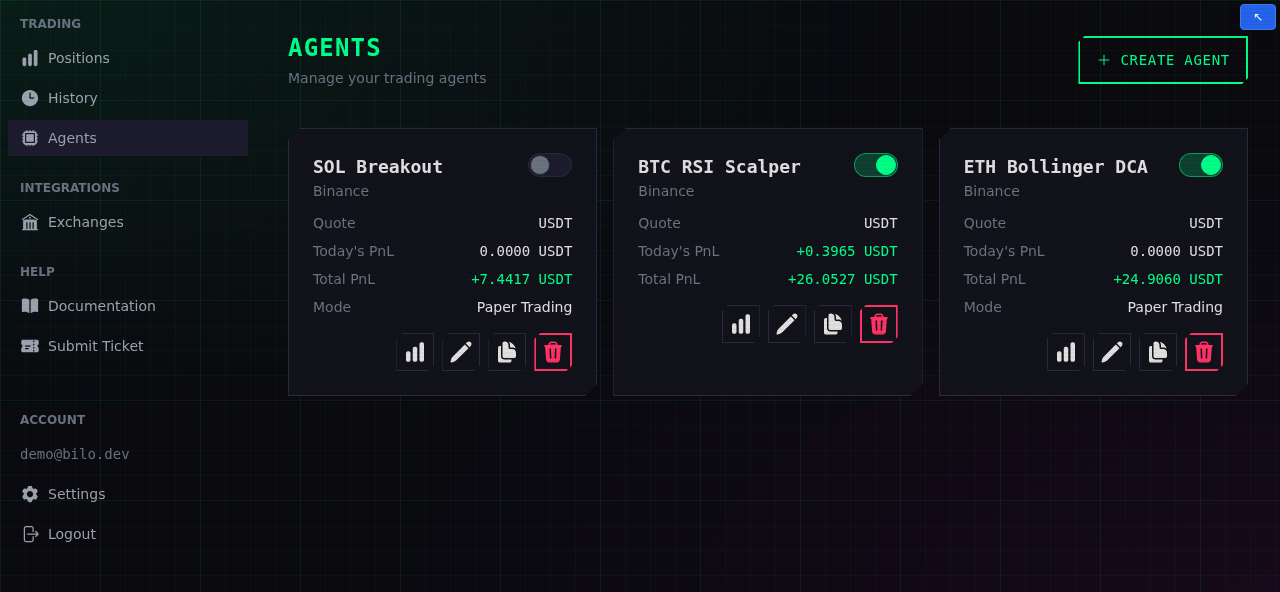
Each card shows:
- Name and the exchange account it trades on.
- Quote — the currency the agent trades in (e.g. USDT).
- Today's PnL and Total PnL — realized profit, net of fees, for today in your browser's timezone and for all time. Green is a gain, red a loss.
- Mode — shown as Paper Trading when the agent trades simulated funds. Live agents omit this line.
- A status toggle (top-right) and a row of action buttons.
Use Create Agent (top-right of the page) to add a new one. If you haven't connected an exchange yet, the page will point you to the Exchanges page first.
Starting and Stopping an Agent
The toggle on each card turns the agent on or off.
- On — the agent evaluates its Open Condition every interval and opens new deals when it triggers.
- Off — the agent stops opening new deals. Deals it already holds are not closed and are not frozen: they stay under full management until they close. They will still exit on their own Take Profit, Stop Loss, or close signal — and their safety orders keep firing. If price falls through the next deviation level, a stopped agent still places that safety order and still spends your quote currency, up to its configured Max Safety Orders. Stopping an agent is not a way to stop it spending; to do that, close its open deals as well.
Starting an agent can be refused in two cases:
- Plan limit reached. Your subscription tier caps how many agents can be active at once (the Free plan allows one, Advanced allows 10, and Pro is unlimited). Stop another agent or upgrade to enable more.
- A backtest is running. If a backtest is replaying the agent, wait for it to finish before starting it live.
Agents can also be stopped for you. If your subscription lapses, your account drops to the Free plan and every active agent is switched off — not only the ones over the Free plan's limit. Moving to a cheaper paid plan is different: only the agents over the new plan's limit are switched off. Either way it is the same Off as the toggle, with the same consequence: the deals those agents already hold stay open and keep placing safety orders on the plan you no longer pay for. After a plan change, check your open Positions and close any deal you don't want to keep funding.
Separately, your plan caps the total number of concurrent open positions across all your agents (the Free plan allows five; Advanced and Pro are unlimited). When every slot is taken, agents ignore new entry signals until one of the open deals closes — then the next deal starts using the same criteria.
Agent Actions
The buttons on each card, left to right:
- Analytics (chart icon) — open the agent's analytics page.
- Edit (pencil) — change the agent's settings using the same form you used to create it. See Bot Settings.
- Clone (duplicate icon) — start a new agent pre-filled with this one's settings, so you can tweak one thing without rebuilding it.
- Delete (trash icon) — permanently remove the agent. You'll be asked to confirm. Its trade history and analytics go with it.
Agent Analytics
Clicking an agent's Analytics button opens its detail page — the full picture of how that one agent is performing.
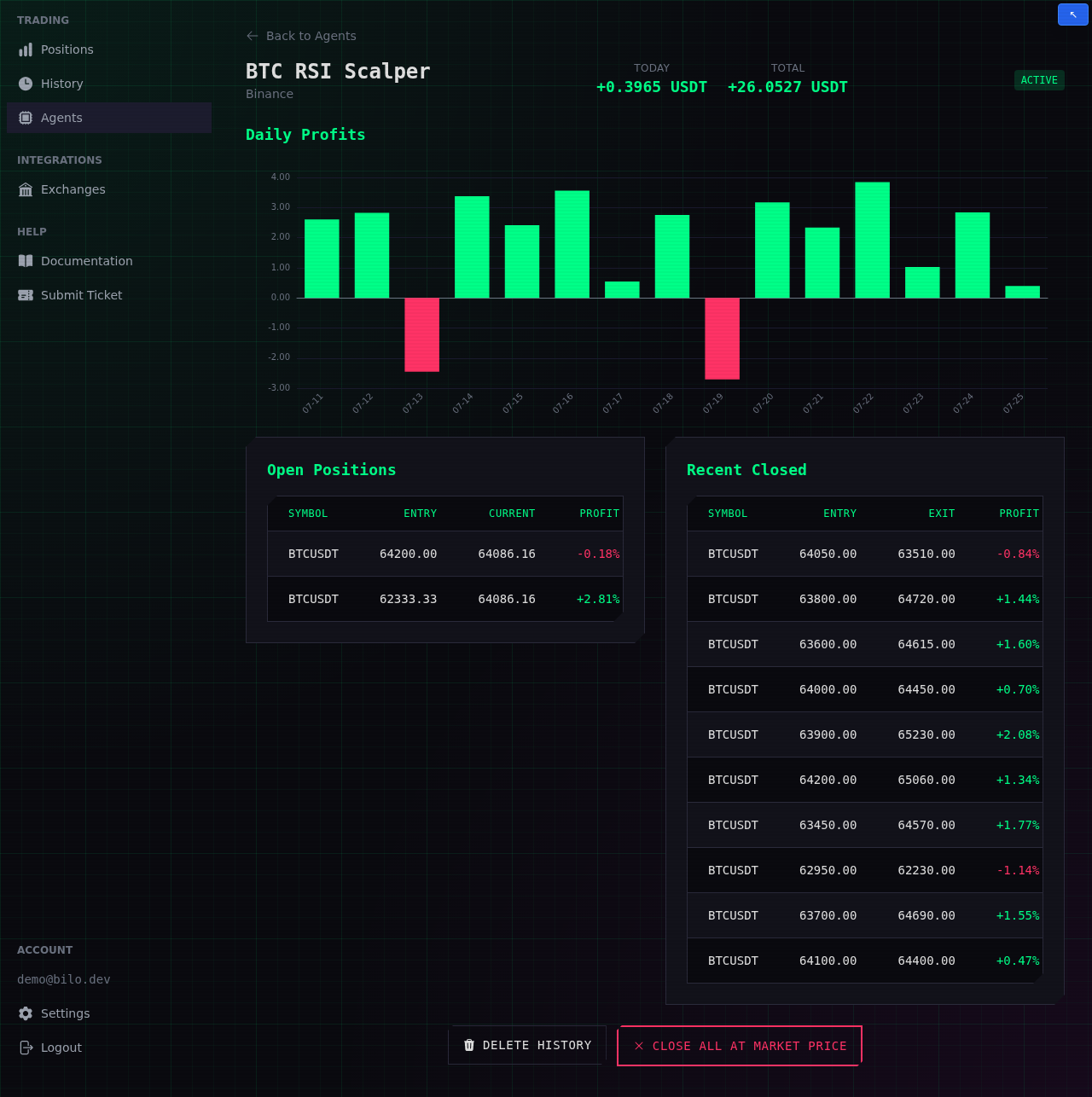
At the top you get the agent's name, exchange, its Today and Total PnL (net of fees), and an ACTIVE / INACTIVE badge.
- Daily Profits — a bar per day of net realized profit, with days running midnight to midnight in your browser's timezone (the same zone the timestamps on the page use). Green bars are profitable days, red bars losing ones. Bars appear as deals close, so a new agent's chart fills in over time.
- Open Positions — the deals this agent currently holds, with entry price, the current market price, and live profit. Click a row to open that position's details.
- Closed Positions — every deal this agent has closed, newest first, with entry, exit, and profit, paged if there are more than fit on one screen. The History page is the same record across all of your agents.
Two actions sit at the bottom:
- Delete History — clears this agent's closed positions and resets its analytics (the Daily Profits chart and PnL totals). Open positions are not affected. This can't be undone.
- Close All at Market Price — immediately queues every open position for this agent to be sold at market. Shown only when the agent has open positions.
Backtesting (Pro)
For a paper-trading agent that is currently stopped, Pro-plan users get a Backtest panel on the analytics page. It replays historical candles through the agent's exact configuration so you can see how it would have performed before risking anything.
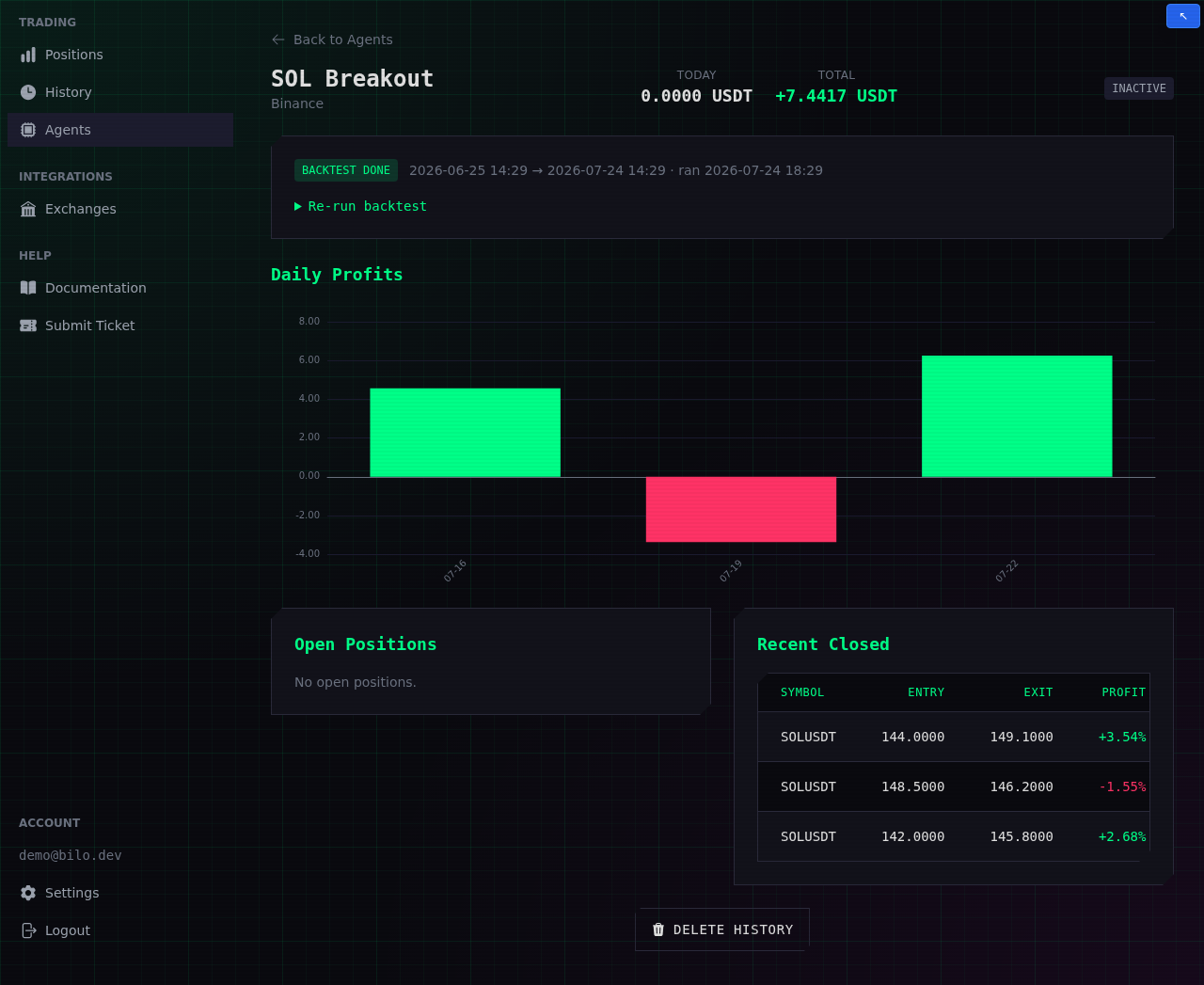
Pick a range (last week, month, 3 months, year, or a custom window) and run it. When it finishes, the results appear as closed deals right on this page — the Daily Profits chart and tables you see above are the backtest output — with a result chip recording the range and when it ran.
Note: Running a backtest replaces the agent's closed history with the replay's results. Run it during setup, before the agent goes live.
For the full walkthrough — requirements, ranges, how to read the results, and the live-vs-backtested caveat — see Backtesting.
Positions (Open Deals)
The Positions page collects every open deal across all your agents in one place — your live exposure right now. It refreshes on its own every few seconds.
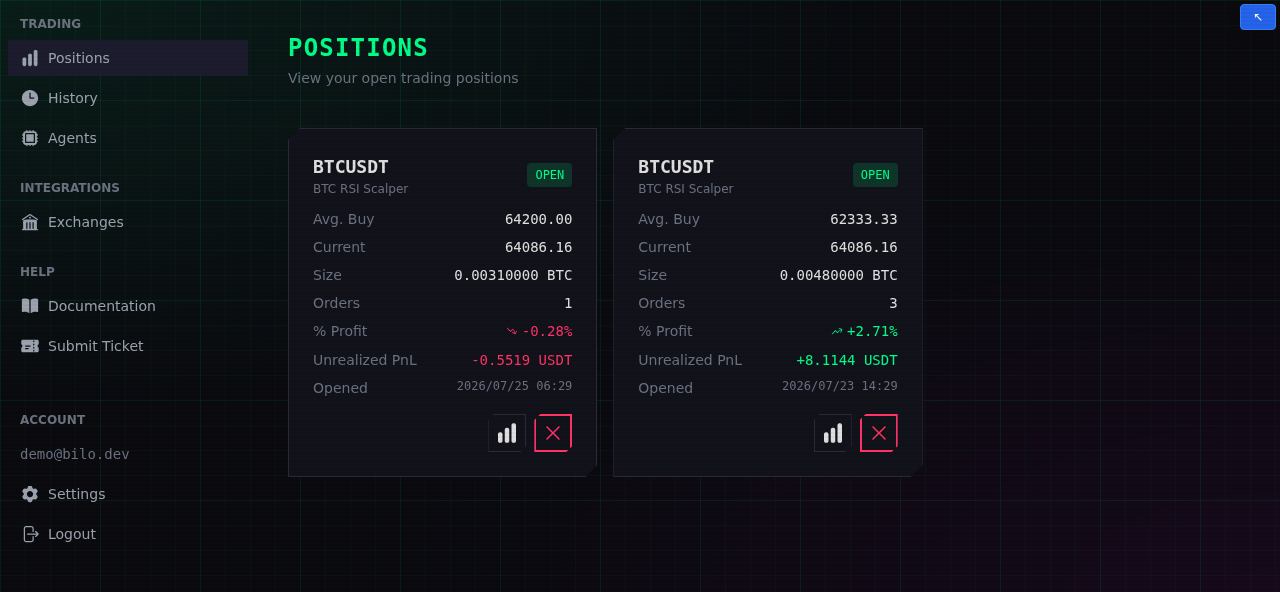
Each card shows the pair and the agent that opened it, plus:
- Avg. Buy — your average entry price (it moves as safety orders fill).
- Current — the latest market price.
- Size — how much of the base asset you hold.
- Orders — how many buys have filled into this deal so far.
- % Profit and Unrealized PnL — live profit if you closed now, net of fees already paid.
- Opened — when the deal started.
The Analytics button opens the position's details; the red ✕ closes the position at market price after a confirmation.
If an exchange's API keys stop working, a banner appears at the top of this page and trading is paused for that exchange until you update the keys on the Exchanges page.
Position Details
Clicking a position's Analytics button opens its detail page — everything about a single deal.
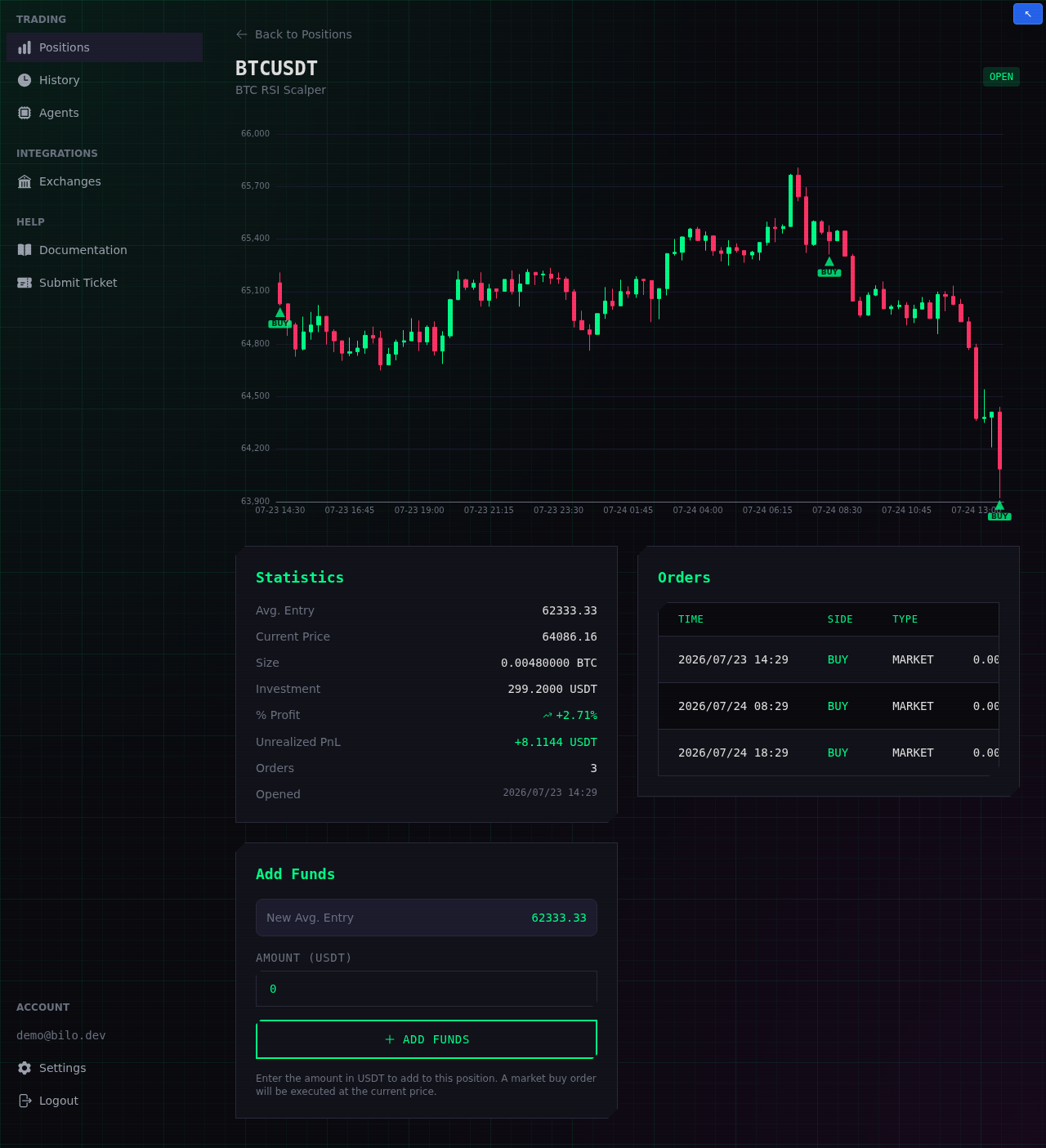
- Price chart — a candlestick chart of the pair since the deal opened, with a marker at every buy and sell fill so you can see exactly where the Agent acted. For a Take Profit agent, the target price is drawn as a line.
- Statistics — average entry, current price, size, total investment, live % profit and Unrealized PnL (net of fees), and the number of orders.
- Orders — the full fill history for this deal: time, side, type, size, price, and status.
- Add Funds — manually average down by buying more at the current price. As you type an amount, the panel previews your new average entry before you commit. A market buy is placed immediately.
If an agent hits repeated failed orders on a pair — for example three in a row that can't complete because of insufficient funds on the exchange — Bilo pauses that pair. All automated trading on it stops (new entries, safety orders, and the protective stop-loss / take-profit exits) until you resume it. The open position shows a Resume button, and the agent's page shows a Resume Paused button next to Close All — either one restarts automation on the pair once you've addressed the cause. An Abandon button closes the deal in Bilo without placing a sell order, for dust or funds already withdrawn.
History
The History page is your complete record of closed deals across every agent, newest first.
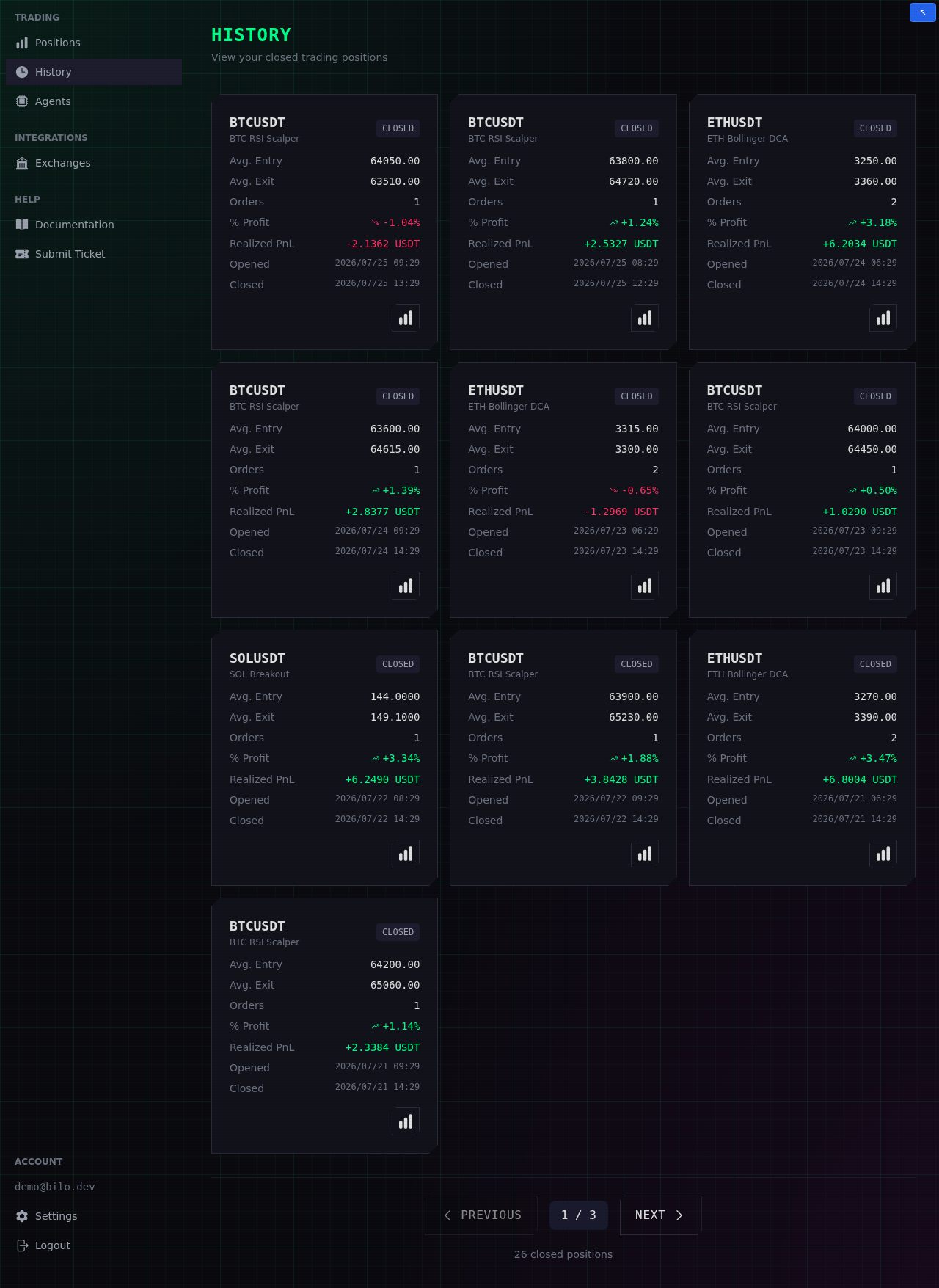
Each card shows the pair and agent, average entry and exit, order count, and the realized % Profit and PnL (net of fees), along with when the deal opened and closed. Use the Analytics button on any card to revisit that deal's chart and orders, and the pager at the bottom to move through older trades.